
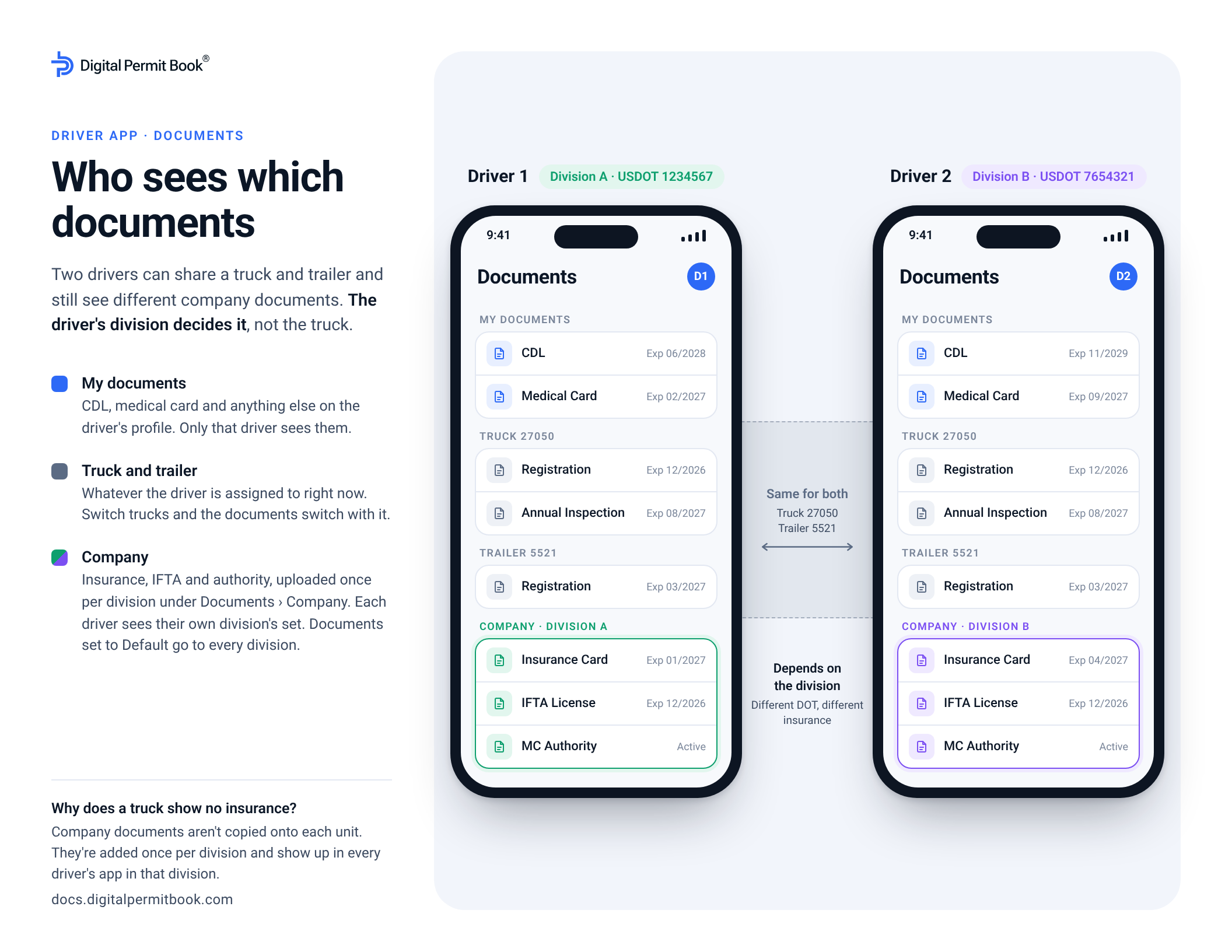
In the driver app, each driver sees four groups of documents: their own, their assigned truck's, their assigned trailer's, and the company documents of their division. Two drivers can share the same truck and trailer and still see different company documents, because company documents follow the driver's division, not the truck.
Print it or send it to your team.
What a driver sees
- My documents – the CDL, medical card and anything else on the driver's profile. Only that driver sees them.
- Truck and trailer – the documents of the truck and trailer the driver is assigned to right now.
- Company – insurance, IFTA, authority and other company documents for the driver's division. Company documents set to Default go to every division.
Why does a truck show no insurance or IFTA?
Company documents aren't copied onto each unit. A truck's Documents tab only lists that truck's own documents, like its registration and annual inspection. The division's insurance card and IFTA are added once under Documents > Company, and every driver in that division sees them in the app next to the truck's documents. An empty-looking unit page is normal.
When a driver changes trucks or divisions
It updates on its own:
- Assign the driver to a different truck or trailer, and the app shows that unit's documents.
- Change the driver's Division, and the app shows that division's company documents.
Nothing needs to be re-uploaded or re-attached.
Why the driver's division and not the truck's?
At a roadside inspection, the driver shows the insurance and authority of the carrier they're driving for, and most ELDs show that carrier's DOT number on the driver's profile. Tying company documents to the driver's division keeps what the driver shows in the app matched to the DOT number the inspector sees, even when trucks are shared between divisions.
Set it up
- Add each division with its own DOT # in Settings > Divisions.
- Set the Division field on each driver's profile. To update many drivers at once, select them in the Drivers list and use the ⋯ menu.
- Add company documents in Documents > Company and choose the division each one belongs to. Leave documents everyone needs on Default.
- Make sure each document's Driver switch is on so it shows in the app. See Driver and DOT Mode Visibility.
If a driver sees the wrong company documents, check their Division field and the Division on the documents. See Divisions for more troubleshooting.